How to Add AI Voiceovers to YouTube Videos (Free, Step by Step)
You do not need an expensive microphone, a quiet room, or even your own voice to narrate a YouTube video. Here is a complete, free workflow for turning a written script into a clean AI voiceover and syncing it into your edit.
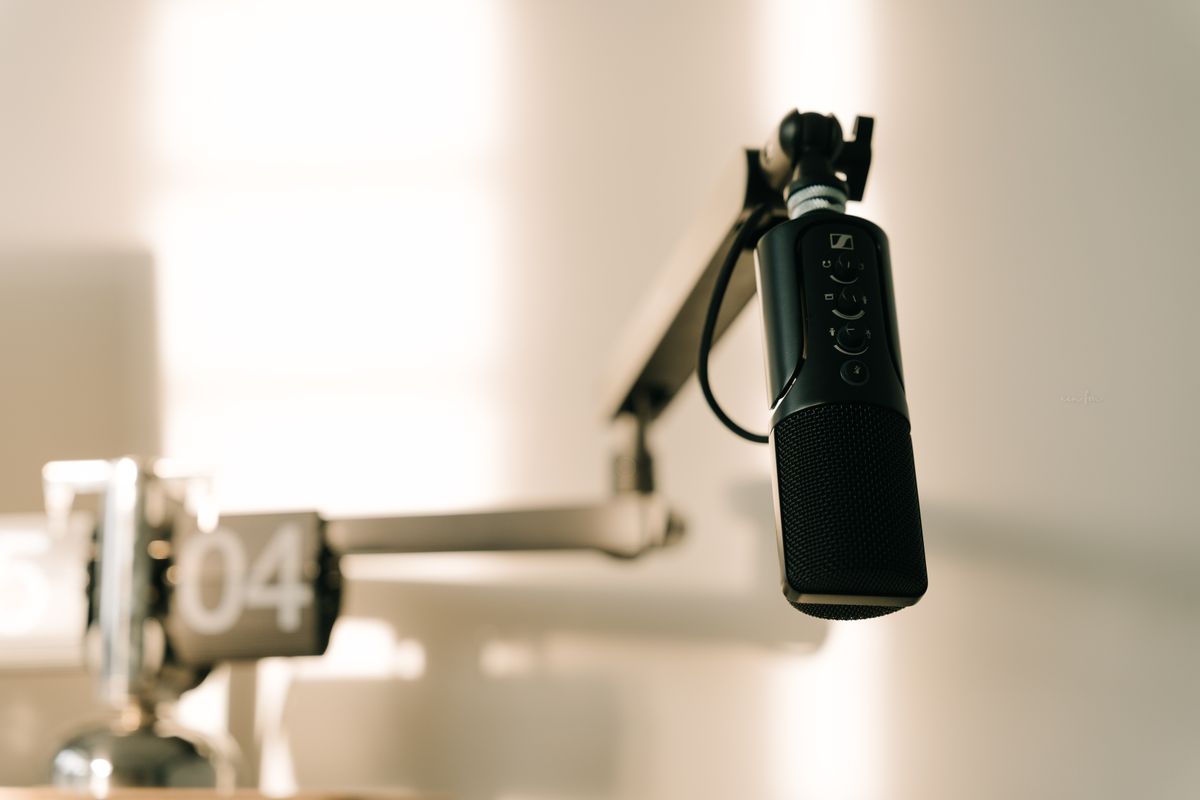
Faceless YouTube channels - think top-10 lists, explainers, news recaps, and relaxing story channels - have exploded in popularity precisely because they remove the hardest parts of video production: being on camera and recording clean narration. The secret behind most of them is text-to-speech. In this guide you will learn how to produce a natural-sounding AI voiceover for free and drop it straight into your video editor.
Why Use an AI Voiceover?
Recording your own narration sounds simple until you actually try it. You need a decent microphone, a treated room without echo, consistent energy across dozens of takes, and the patience to edit out every stumble and breath. AI voiceovers sidestep all of that:
- Consistency - every line sounds identical in tone and volume, so your channel has a recognizable voice.
- Speed - a five-minute script becomes finished audio in seconds, not an hour of re-takes.
- No equipment - no mic, no soundproofing, no audio cleanup.
- Multiple languages - publish the same video in English, Indonesian, or Spanish without hiring narrators.
Step 1: Write a Script Built for the Ear
Good voiceover writing is different from writing for the page. People listen linearly and cannot re-read a sentence, so keep it simple:
- Use short sentences. If you run out of breath reading it aloud, split it.
- Write the way you talk. Contractions ("it's", "you'll") sound natural.
- Add a hook in the first two lines - viewers decide within seconds whether to stay.
- Read your draft out loud once. Anything that trips you will trip the AI too.
Step 2: Choose a Voice That Fits Your Channel
Your voice is part of your brand. A calm, warm narrator suits story and meditation channels; a brighter, faster voice suits news and entertainment. Open the eidosSpeech app, filter voices by language, and preview a few reading the same sentence. Pick one and stick with it across videos so returning viewers recognize your channel instantly.
Step 3: Generate the Audio
Paste your script, select your chosen voice, and generate. A few tips for a polished result:
- Break long scripts into sections. Generating per scene makes it easy to re-do one part without redoing everything.
- Adjust the speaking rate. Slightly slower often sounds more authoritative; slightly faster keeps energy high.
- Use punctuation to control pacing. Commas and periods create natural pauses. Add a line break where you want a beat.
When you are happy, download the MP3. Repeat for each section of your script.
Step 4: Sync the Voiceover in Your Editor
Import the MP3 into any editor - CapCut, DaVinci Resolve, Premiere, or even a phone app. The usual workflow is voice first, visuals second:
- Drop the voiceover onto the timeline as your anchor track.
- Lay b-roll, screenshots, or stock clips over each sentence.
- Add light background music at around 10–15% volume so it never competes with the narration.
- Use the natural pauses in the audio as cut points between scenes.
Step 5: Add Subtitles
Most social video is watched on mute, so subtitles are not optional. Because you already have the exact script, captioning is trivial - and eidosSpeech can generate a timed .srt subtitle file alongside the audio for registered users, which you can import directly into your editor or upload to YouTube.
A Few Things to Keep in Mind
AI narration is powerful, but use it responsibly. Disclose AI-generated voices where your audience or platform expects it, avoid impersonating real people, and review the usage terms for the underlying voices for commercial projects. Quality still matters: a lazy script read by a perfect voice is still a lazy video.
Put It All Together
The entire pipeline - script, voice, audio, sync, subtitles - can be done in an afternoon with zero budget. Start by writing one short script, then generate your first voiceover and hear how quickly a plain paragraph becomes broadcast-ready narration. For automating this at scale across many videos, see our API tutorial.